Your site has a look now (thanks to Part 4). Time to fill it with content and make it easy to navigate. And that starts with a distinction that trips up almost every beginner: the difference between a page and a post.
Get this one idea right and your whole site stays organized. Get it wrong and things end up in odd places, your blog gets messy, and your menus make no sense. So let’s nail it — plus menus and overall structure — in plain English.
📚 This is Part 5 of my “WordPress Zero to Hero” series. A 10-part, plain-English path from “what is WordPress?” to confidently running your own site. You can see every part of the series here — bookmark it and follow along.
Pages vs posts: the key difference
Both pages and posts hold content, and they’re edited the same way. The difference is what kind of content they’re for:
- Pages are permanent, standalone content that rarely changes — Home, About, Services, Contact. They’re timeless and live in your menu.
- Posts are timely, dated content — blog articles, news, updates. They’re shown newest-first and are organized by categories and tags.
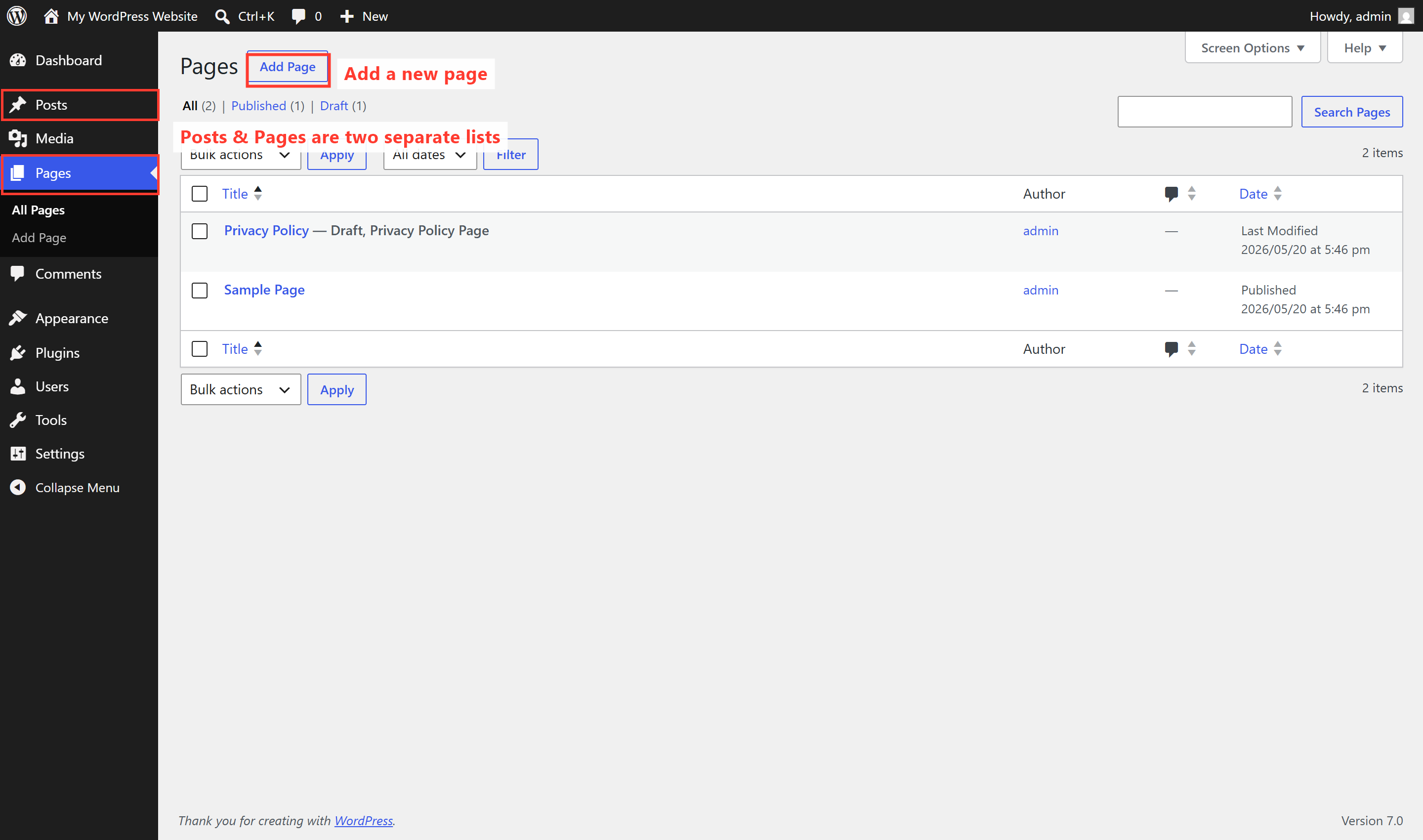
A quick test: if it has a publish date that matters (like “our 2026 summer offer” or this very article), it’s a post. If it’s evergreen and you’d expect it in the top menu (like “About Us”), it’s a page. Your Pages list is where all those fixed pages live:
| Pages | Posts | |
|---|---|---|
| Good for | Home, About, Services, Contact | Blog articles, news, updates |
| Timing | Evergreen — rarely changes | Dated — newest shown first |
| Organized by | Nothing — they’re standalone | Categories & tags |
| Usually in the menu? | Yes | Usually just a “Blog” link |
Categories and tags (for posts)
As your blog grows, categories keep it tidy. Think of categories as the chapters of a book — broad groupings like “Marketing Tips” or “Case Studies.” Tags are more like index keywords — specific topics that might appear across many categories. For most business blogs, a handful of clear categories is all you need; don’t overthink tags.
Menus: how visitors get around
A menu is the navigation bar — usually across the top of your site — that links to your most important pages. WordPress lets you build it yourself: choose which pages appear, what order they’re in, and how they nest into dropdowns.
Depending on your theme, you’ll find this under Appearance → Menus (classic themes) or in the Editor → Navigation area (newer block themes). Here’s the classic Menus screen, where you build navigation by picking items and arranging them:
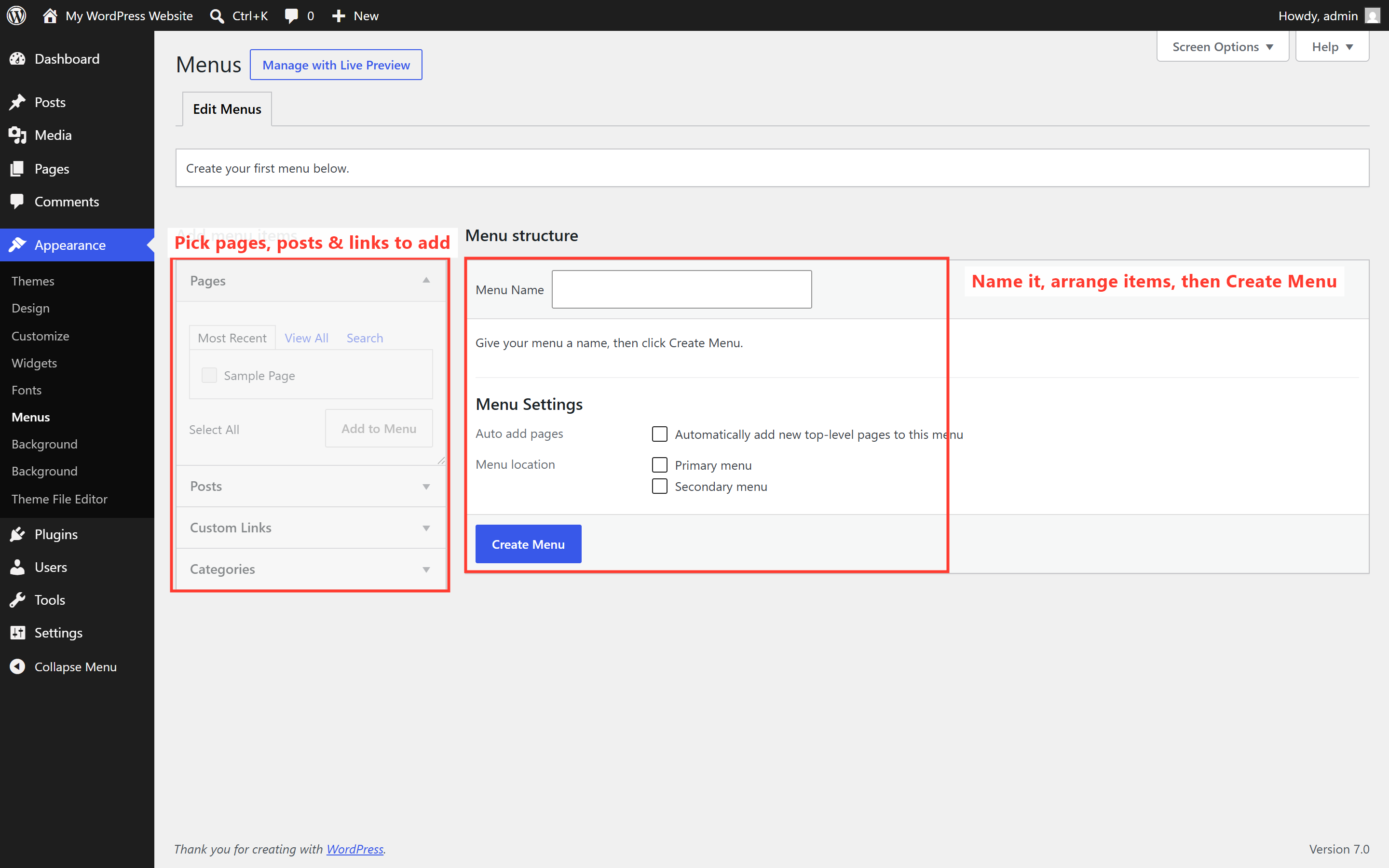
The idea is the same whatever your theme: choose what appears, drag it into order, nest items into dropdowns, and save. A few rules of thumb:
- Keep the top menu short — five to seven items. A wall of links overwhelms visitors.
- Lead with what matters — the pages that make you money (usually Services) deserve prime spots.
- Use dropdowns sparingly — group related services under one parent, but don’t bury important pages three levels deep.
- End with a clear call to action — a “Contact” or “Get a Quote” link on the right works well.
Thinking about site structure
“Structure” just means how your pages relate to each other — your site’s map. A clean structure helps two audiences at once: visitors find things faster, and Google understands your site better (which helps your rankings — more in Part 7). A simple, effective layout for most small businesses looks like this:
- Home — your shop window; sends people to the right place.
- Services — ideally one dedicated page per core service, not one giant list.
- About — builds trust; people buy from people.
- Blog — your posts, demonstrating expertise.
- Contact — easy to find, with one obvious next step.
⚠️ A common mistake: one giant “everything” page. Cramming all your services onto a single long page feels efficient, but it’s weaker for both visitors and Google. A separate, focused page per service ranks better and converts better. Structure isn’t busywork — it’s quietly one of your best marketing assets.
🚀 Try it yourself: In WordPress Playground, create a new Page (“Add Page”) and a new Post (“Add Post”), then look at how each one appears differently on your site. Feeling the difference firsthand makes it stick far better than any explanation.
What’s next in the series
Your site is now structured and navigable. Next we give it superpowers. In Part 6, I’ll cover essential plugins — the add-ons every business site needs, the ones to skip, and how to avoid the “too many plugins” trap that slows sites to a crawl. Follow the full series here.
Want a site that’s logically structured, easy to navigate, and built to convert visitors into inquiries? That planning is part of every project I take on. See how I can help — or hire me on Upwork and say hi there.