By now your site has structure and a design (that was Part 5). But out of the box, WordPress is deliberately lean. The magic — contact forms, SEO tools, online stores, booking systems — comes from plugins. They’re the single biggest reason WordPress can do almost anything.
They’re also where business owners get into trouble, by installing too many, or the wrong ones. So let me explain what plugins are, which ones genuinely matter, and how to stay out of the danger zone.
📚 This is Part 6 of my “WordPress Zero to Hero” series. A 10-part, plain-English path from “what is WordPress?” to confidently running your own site. You can see every part of the series here — bookmark it and follow along.
What a plugin actually is
A plugin is a small add-on that bolts extra features onto WordPress — like apps on your phone. Your phone does the basics out of the box; you install apps for the specific things you need. WordPress works exactly the same way. Need a contact form? Install a form plugin. Need an online shop? Install WooCommerce. Need better SEO? Install an SEO plugin.
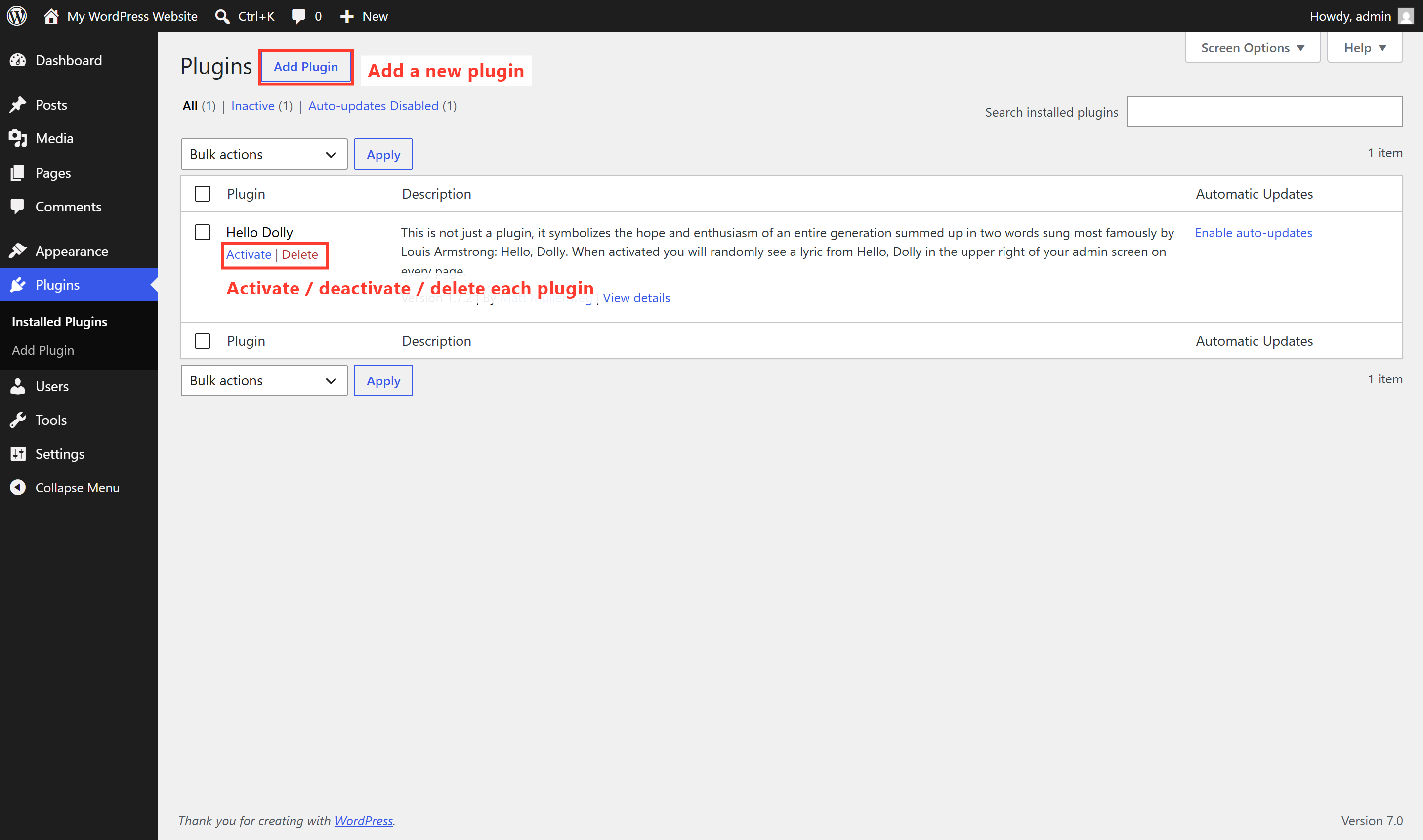
You manage what’s installed under Plugins in your dashboard, where you can activate, deactivate, and update each one:
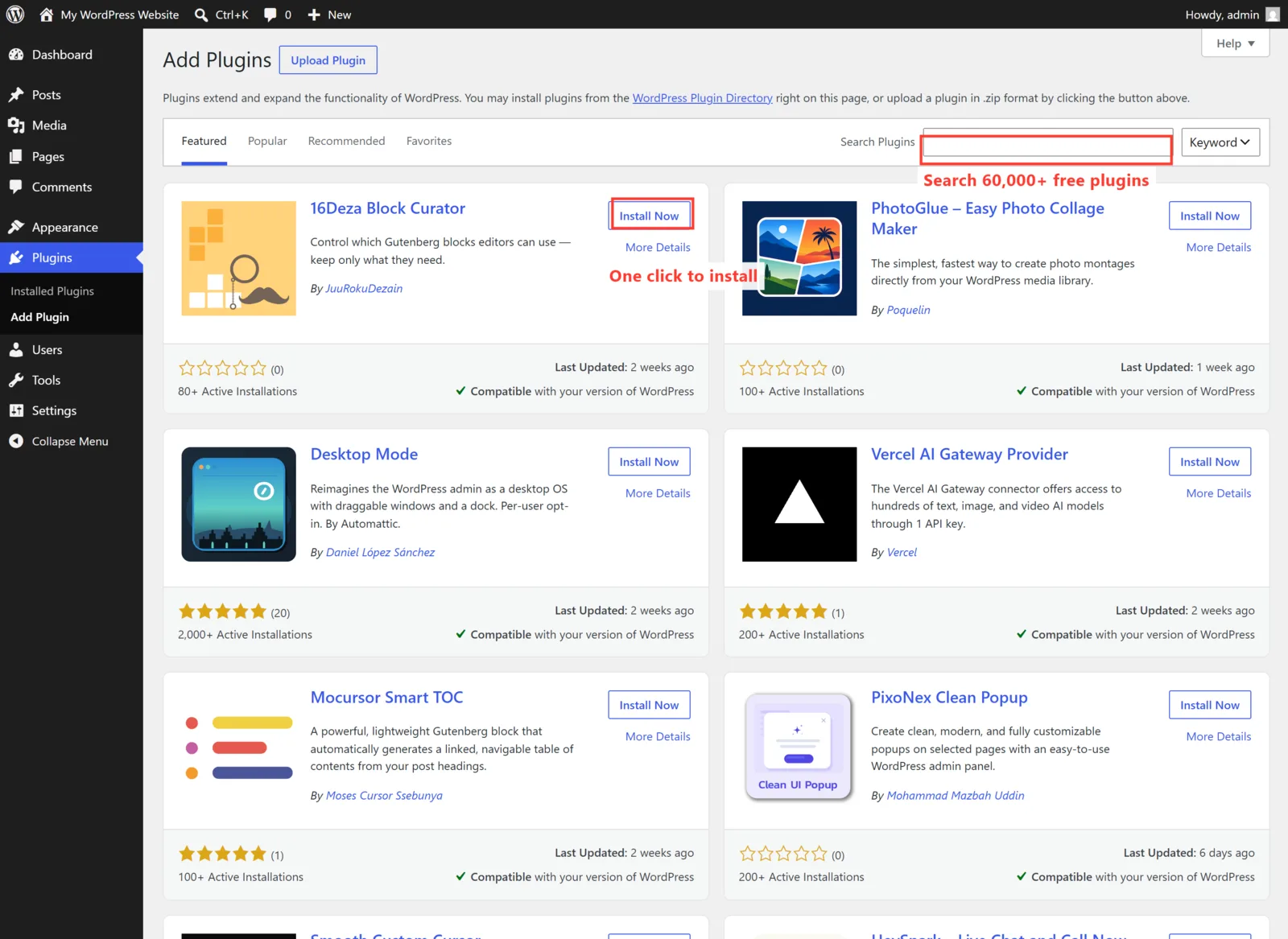
Click Add New Plugin and you can search a directory of nearly 60,000 free plugins, then install one with a couple of clicks:
The plugins most business sites genuinely need
You don’t need many. Here’s the short, honest list that covers the essentials for a typical business website:
- An SEO plugin (Rank Math or Yoast) — helps you show up on Google. Covered in Part 7.
- A contact form (WPForms, Fluent Forms) — so people can actually reach you.
- A caching/speed plugin (WP Rocket, LiteSpeed Cache) — makes your site load faster. Covered in Part 8.
- A security plugin (Wordfence, Solid Security) — an extra lock on the door. Covered in Part 9.
- A backup plugin (UpdraftPlus) — your safety net if anything goes wrong.
- Optional: a page builder (Elementor) — if you want drag-and-drop design (Part 4).
That’s roughly it for most sites. Add an online-store plugin (WooCommerce) or a booking plugin only if your business actually needs one. The goal is “enough to do the job,” not “as many as possible.”
The “too many plugins” trap
⚠️ Every plugin is a guest you’re responsible for. Each one adds code, can slow your site, and is a potential security or compatibility issue — especially if it’s poorly built or abandoned. The number isn’t really the problem; quality is. Ten well-made plugins are fine. Three sketchy, outdated ones can wreck a site. Choose reputable, well-reviewed, actively-updated plugins, and delete anything you’re not using.
How to vet a plugin before installing
Thirty seconds of checking saves hours of grief. On any plugin’s directory page, look at:
- Active installations — more is reassuring (lots of sites trust it).
- Last updated — within the last few months is good; “2 years ago” is a red flag.
- Star rating & reviews — skim the recent ones, not just the average.
- “Tested up to” — it should support a current version of WordPress.
And always keep your plugins updated — those updates are usually fixing security holes. We’ll make updates a painless habit in Part 10.
🚀 Try it yourself: In WordPress Playground, go to Plugins → Add New, search for a contact-form plugin, and install it. Watch a brand-new menu item appear in your sidebar. That’s the moment plugins click — you just gave your site a new ability in under a minute.
What’s next in the series
You can now extend your site with the right tools. Next, let’s get you found. In Part 7, I’ll cover WordPress SEO basics — the practical, non-technical steps that help your site show up when people search for what you offer. Follow the full series here.
Not sure which plugins your site actually needs — or worried the dozen you inherited are slowing you down? Auditing and streamlining plugin setups is routine work for me. See how I can help — or hire me on Upwork and say hi there.