Your site is fast (that was Part 8). Now let’s make sure it’s safe. The word “security” makes a lot of business owners glaze over — it sounds like a job for hackers in hoodies. It isn’t. For most sites, security is just a few sensible habits, like locking your shop at night.
And its trusty sidekick — backups — is the single most reassuring thing you can set up. Get these two right and you can stop worrying about your website. Here’s how.
📚 This is Part 9 of my “WordPress Zero to Hero” series. A 10-part, plain-English path from “what is WordPress?” to confidently running your own site. You can see every part of the series here — bookmark it and follow along.
Is WordPress safe?
Yes — WordPress core is built and maintained by security professionals and is very secure. When sites get compromised, it’s almost never WordPress itself. It’s usually a weak password, an outdated plugin, or cheap hosting. In other words: the lock is strong; people just leave the window open. The fixes are squarely within your control.
The security basics (do these first)
- Strong, unique passwords. The most important step, full stop. Use a password manager and never reuse passwords across sites.
- Two-factor authentication (2FA). A code from your phone on top of your password. It stops the vast majority of break-in attempts cold.
- Keep everything updated. WordPress, themes, and plugins. Outdated software is the most common way in. (We’ll make this a habit in Part 10.)
- Avoid the username “admin.” It’s the first thing attackers guess. Use something less obvious.
- Install a security plugin. Wordfence or Solid Security add a firewall, login protection, and monitoring with very little effort.
- Make sure you have SSL. The padlock and “https” in the address bar. It’s free with good hosting and expected by both visitors and Google.
Mind who has the keys
A quietly important part of security is who can log in. Every person with access is a potential way in, so it pays to keep your Users list tidy and give each person only the access they need:
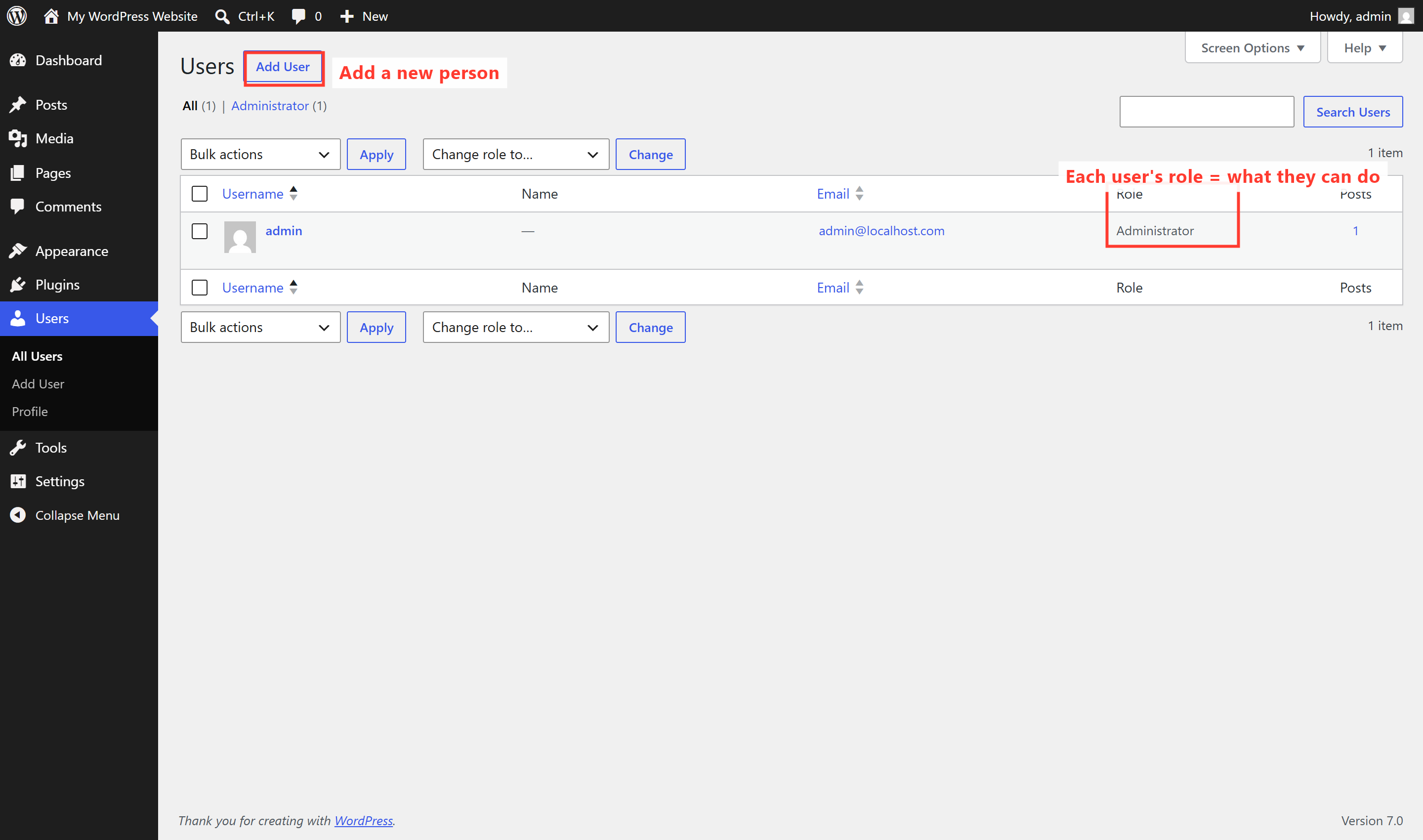
WordPress has built-in roles: an Administrator can do everything, an Editor manages content, an Author writes their own posts, and so on. Give people the lowest role that lets them do their job. Your freelance blog writer doesn’t need full Administrator keys to the whole site — and when someone stops working with you, remove their account promptly.
Backups: your ultimate safety net
If security is locking the door, a backup is the spare key and insurance policy combined. A backup is a saved copy of your entire site. If anything ever goes wrong — a bad update, a hack, a mistake — you simply restore the backup and you’re back in minutes instead of days.
⚠️ A backup you’ve never tested isn’t a backup — it’s a hope. Set up automatic backups, store them somewhere off your hosting (Google Drive, Dropbox, or the plugin’s cloud), and actually try restoring one once. The worst time to discover your backups don’t work is the day you desperately need them.
Setting backups up is easy:
- Use a backup plugin like UpdraftPlus, or your host’s built-in backups (good managed hosts back up daily for you).
- Schedule them automatically — daily for active sites, weekly at minimum.
- Store copies off-site so a server problem can’t take your backups with it.
- Always back up before big changes — major updates, a redesign, or anything you’re nervous about.
🚀 Today’s action: Check two things on your live site — do you have automatic backups running, and is 2FA enabled on your admin login? If either is a “no,” that’s your highest-value job this week. Fifteen minutes now can save you a catastrophe later.
What’s next in the series
We’re almost there. In the final Part 10, I’ll tie everything together with ongoing maintenance — and how to know when it’s time to hire a pro. The simple routine that keeps your site healthy, and an honest look at what’s worth doing yourself versus handing off. Follow the full series here.
Want the peace of mind that your site is locked down and backed up properly — without having to become a security expert yourself? That’s exactly the kind of thing I set up and look after for clients. See how I can help — or hire me on Upwork and say hi there.