
In Part 1 we installed Rank Math and ran the setup wizard. Now it’s time to get comfortable with your new SEO control center — the Rank Math dashboard — and the single most important idea in the whole plugin: modules.
Rank Math does a lot. But you don’t have to use all of it, and you definitely shouldn’t switch everything on. Once you understand modules, the plugin stops feeling overwhelming and starts feeling like a toolbox you control.
📚 Part 2 of my in-depth Rank Math series (within my WordPress Plugin Guides). New here? Begin with Part 1: Installing & Setting Up Rank Math.
Finding the dashboard
In your WordPress sidebar, click Rank Math SEO → Dashboard. You’ll land on the Modules screen — a grid of cards, each one a separate feature you can turn on or off. I’ve marked the three things to notice first:
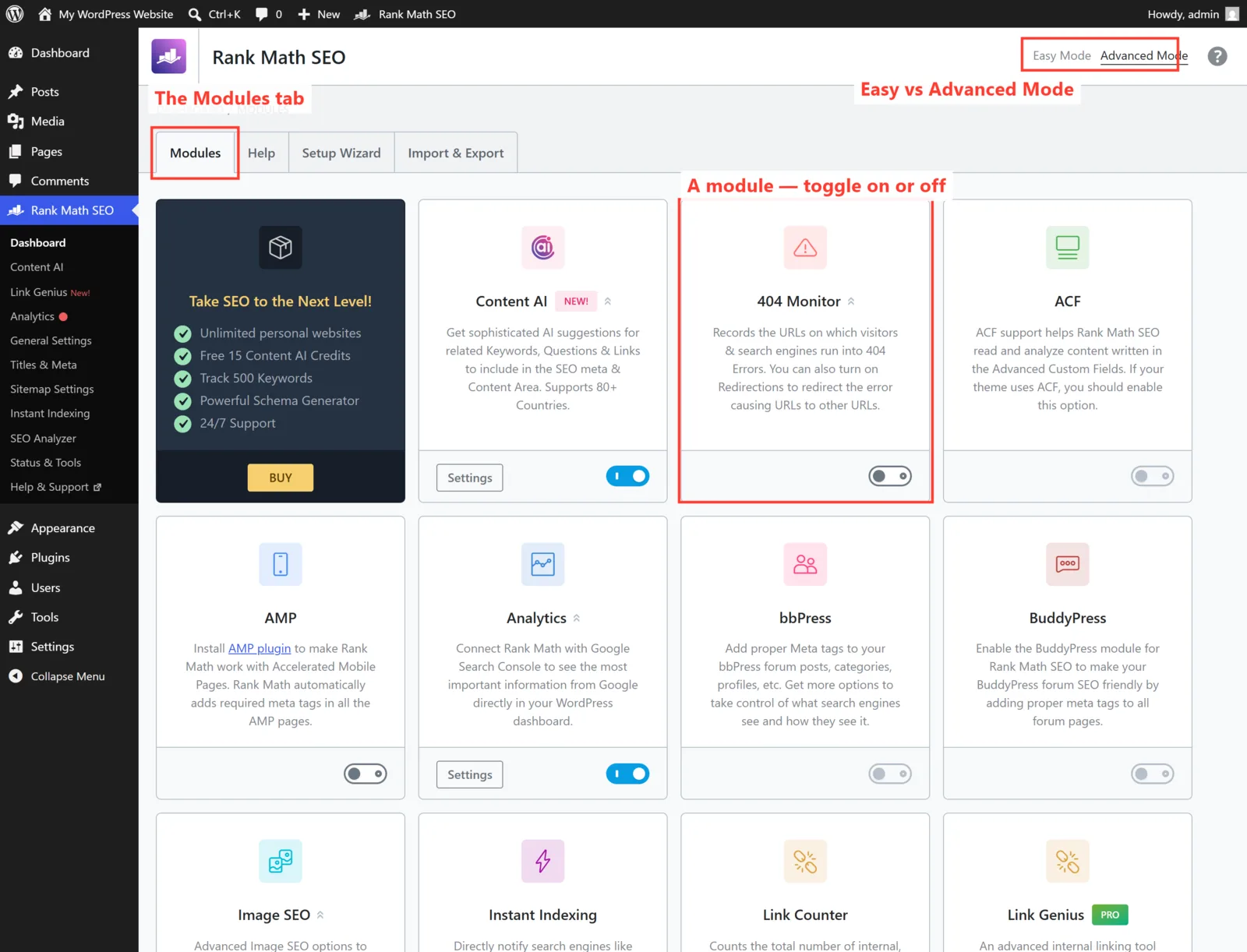
- The Modules tab — this grid is where you enable and disable features. The other tabs (Help, Setup Wizard, Import & Export) you’ll rarely touch.
- Easy vs Advanced Mode (top right) — Easy mode hides the deep technical settings. If you chose Easy in the wizard, leave it there for now; you can always switch to Advanced later.
- Each card is a module — the little toggle on the card turns that feature on (blue) or off (grey). That’s the whole idea.
Why modules matter
Every module you enable loads a little more code and adds a little more to your menus. Switching off the ones you’ll never use keeps your site lean and your admin tidy. So the goal isn’t “turn everything on” — it’s “turn on what fits your site.”
Modules I turn ON for almost every site
- Sitemap — generates the XML sitemap Google uses to find your pages. Essential. (We’ll dig into this in Part 5.)
- SEO Analysis — gives your site an overall SEO health score and a checklist of fixes. Great for spotting easy wins.
- Rich Snippets / Schema — adds the structured data that earns you star ratings, FAQs and other rich results in Google. (More in Part 6.)
- Link Counter — counts internal and external links per post, which nudges you toward better internal linking.
- 404 Monitor — logs the broken URLs visitors hit, so you can fix or redirect them.
- Redirections — create clean 301 redirects without touching code. A must when you change URLs.
Modules to enable only if they fit
- Local SEO — turn on if you’re a local business (shop, clinic, tradesperson). It adds your address, hours and map data.
- Analytics — pulls Google Search Console & Analytics data into WordPress. Useful, but needs connecting (Part 5).
- Image SEO — auto-fills missing image alt text. Handy on image-heavy sites.
- WooCommerce / bbPress / BuddyPress — only relevant if you actually run a shop or forum with those plugins.
⚠️ Don’t enable everything “just in case.” Modules like AMP, ACF, bbPress and BuddyPress only make sense if you’re running those specific tools. Leaving the rest off won’t hurt your SEO one bit — it just keeps things simpler.
🚀 Try it yourself: In WordPress Playground with Rank Math installed, open Rank Math SEO → Dashboard and toggle a few modules on and off. Watch how items appear and disappear from the sidebar — that’s modules in action, with zero risk to a real site.
What’s next
You now know your way around the dashboard and which modules earn their place. In Part 3, we’ll open Titles & Meta — the settings that control how every page of your site appears in Google search results. Continue to Part 3 →
Not sure which modules your site actually needs? Configuring Rank Math sensibly is part of every WordPress project I take on. See how I can help — or hire me on Upwork and say hi there.